A laptop can look like a sensible long-term purchase and still leave you with no practical way to add memory, expand storage or replace a worn battery. The difficulty is that “upgradeable” is often used as a broad compliment when it describes several very different things.
A replaceable SSD does not mean the memory can be expanded. An internal battery can be technically replaceable without being a realistic home repair. A service manual may show how to remove a fan, but that does not establish that the fan will be sold for years to come.
The useful question before buying is not simply whether a laptop is upgradeable. It is which parts can be changed, by whom, with what documentation and parts, and whether those options will matter during the years you expect to own it.
For a laptop intended for writing, browsing, calls and ordinary household administration, buying enough capacity at the start may matter more than future expansion. For software development, large photo libraries, local virtual machines or demanding creative work, an accessible memory slot or second SSD bay can be worth more than a slightly slimmer case. The exact answer depends on the configuration you are considering, not just its family name or marketing category.
Upgradeability and repairability solve different problems
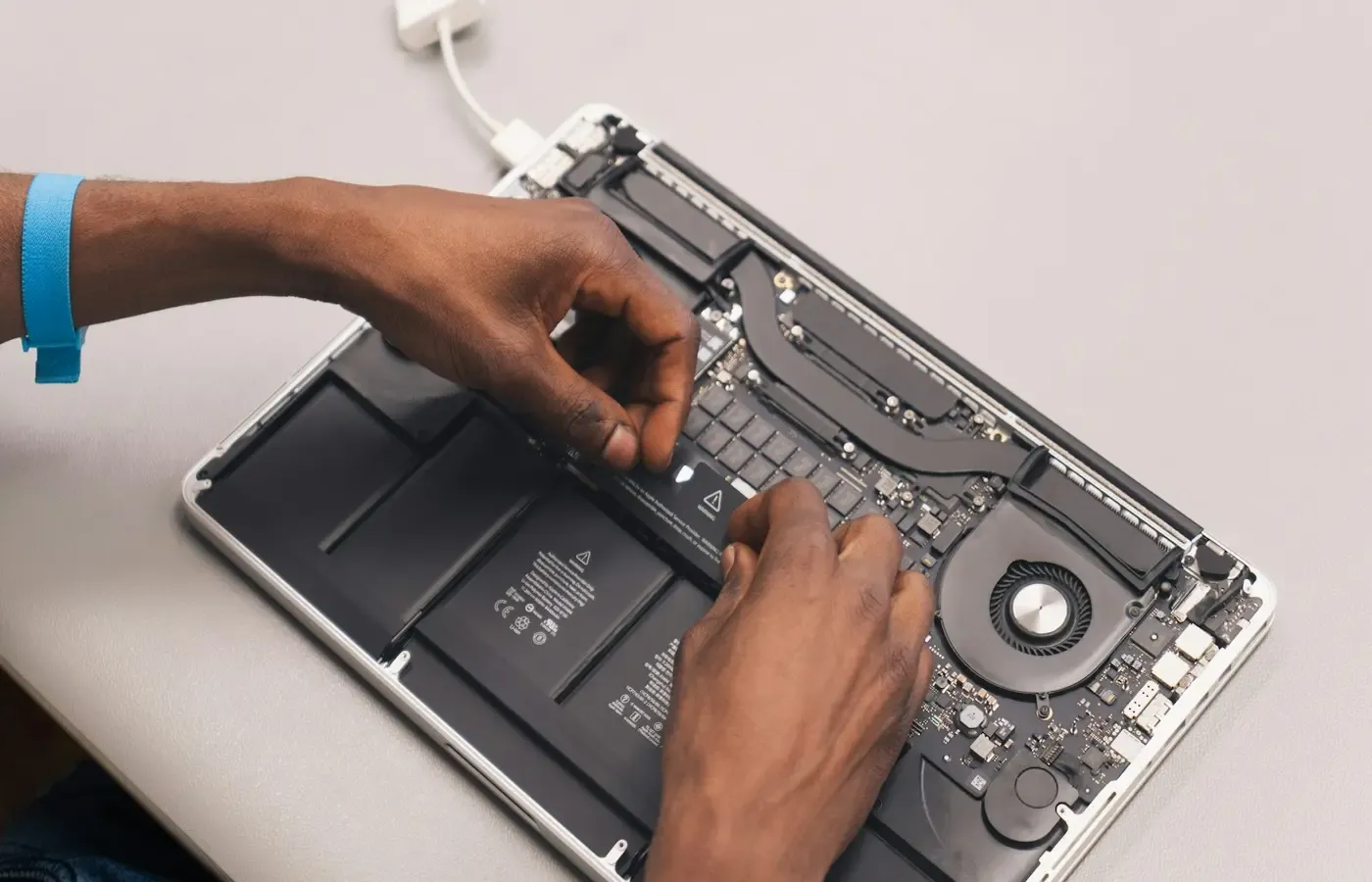
Upgradeability is about changing a working machine to increase capacity or capability. Repairability is about restoring a machine whose battery, keyboard, fan, display or another component has worn out or failed.
HP makes this distinction in its repairability guidance: replacing a worn battery, keyboard or fan is repair, while adding memory or installing a larger SSD is an upgrade. Both can affect how long a laptop remains useful, but they answer different ownership risks.
A laptop with replaceable memory may be able to accommodate a larger workload later, yet still be difficult to keep running if its battery or keyboard is inaccessible and parts are unavailable. Conversely, a machine with a replaceable battery may remain operational for years while becoming frustratingly slow because it started with too little memory or storage.
Neither quality makes an underpowered purchase indefinitely adequate. Processor and graphics performance, operating-system support, display condition, ports and the software you need can all set limits that a new SSD cannot remove. Most laptop CPUs and GPUs are not practical upgrades because they are generally soldered to the motherboard, according to HP’s component upgrade guide.
Before comparing specifications, define the job and the ownership period. Our guide to buying a laptop you can repair, upgrade, and keep longer suggests starting with the work you expect to do, the peripherals you rely on, your likely memory and storage needs, and whether you would be prepared to open the machine or use a repair provider.
Check the exact configuration, not the laptop family name
A product line can contain configurations with different memory capacities, storage arrangements and sometimes different internal layouts. Retail listings often make this harder to see: they may identify a screen size and processor but omit the exact machine code, memory type or available storage slots.
Do not treat a statement such as “supports SSD upgrades” as enough information. Before buying, find documentation for the exact model, market and configuration being sold. A practical pre-purchase file should include:
- the manufacturer’s specification sheet or technical specifications;
- the service, maintenance or hardware-replacement manual;
- a parts catalogue or authorised-parts listing, where one exists;
- the support page for the precise model code; and
- the retailer’s configuration details, checked against the manufacturer’s documentation.
Then separate what is installed from what remains available. Is the memory removable or soldered? Is there one SSD slot occupied by the supplied drive, or a second empty slot? Does the manual show a battery replacement procedure? Are keyboards, fans, display assemblies or charging ports identified as replaceable modules?
This is slower than comparing processor names, but it avoids a familiar disappointment: learning after purchase that the laptop has an M.2 SSD only because that single slot is already occupied, or that a high-memory version exists only as a factory configuration with permanently attached memory.
Manufacturer guidance can explain a component design, but it cannot establish how easy a particular laptop will be to service. Without an exact manual, parts catalogue or independent teardown for the model in question, treat claims about access and repair difficulty as unverified.
Memory: assume soldered LPDDR is permanent
Memory is the component buyers most often assume they can add later. That assumption is unsafe.
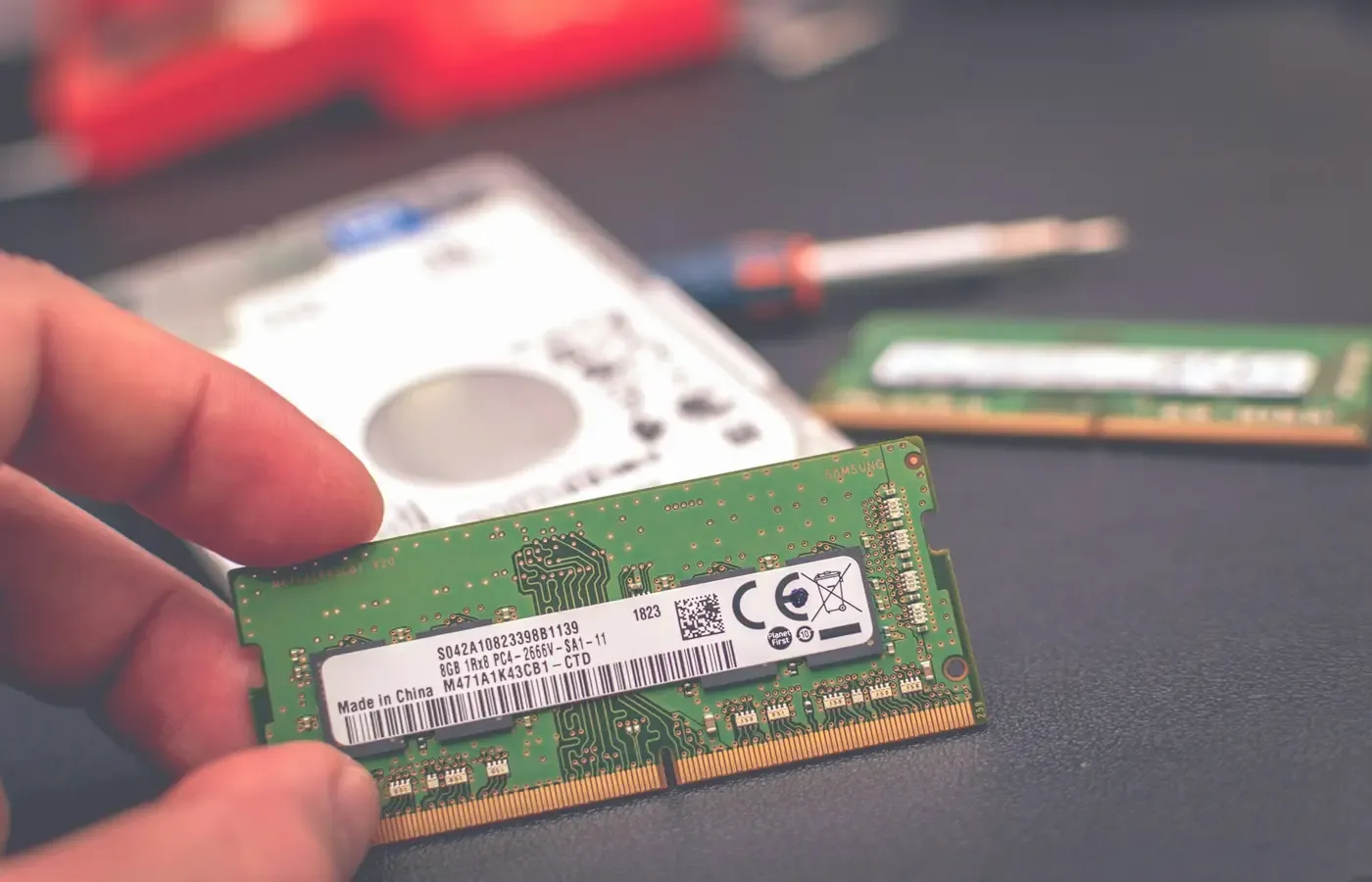
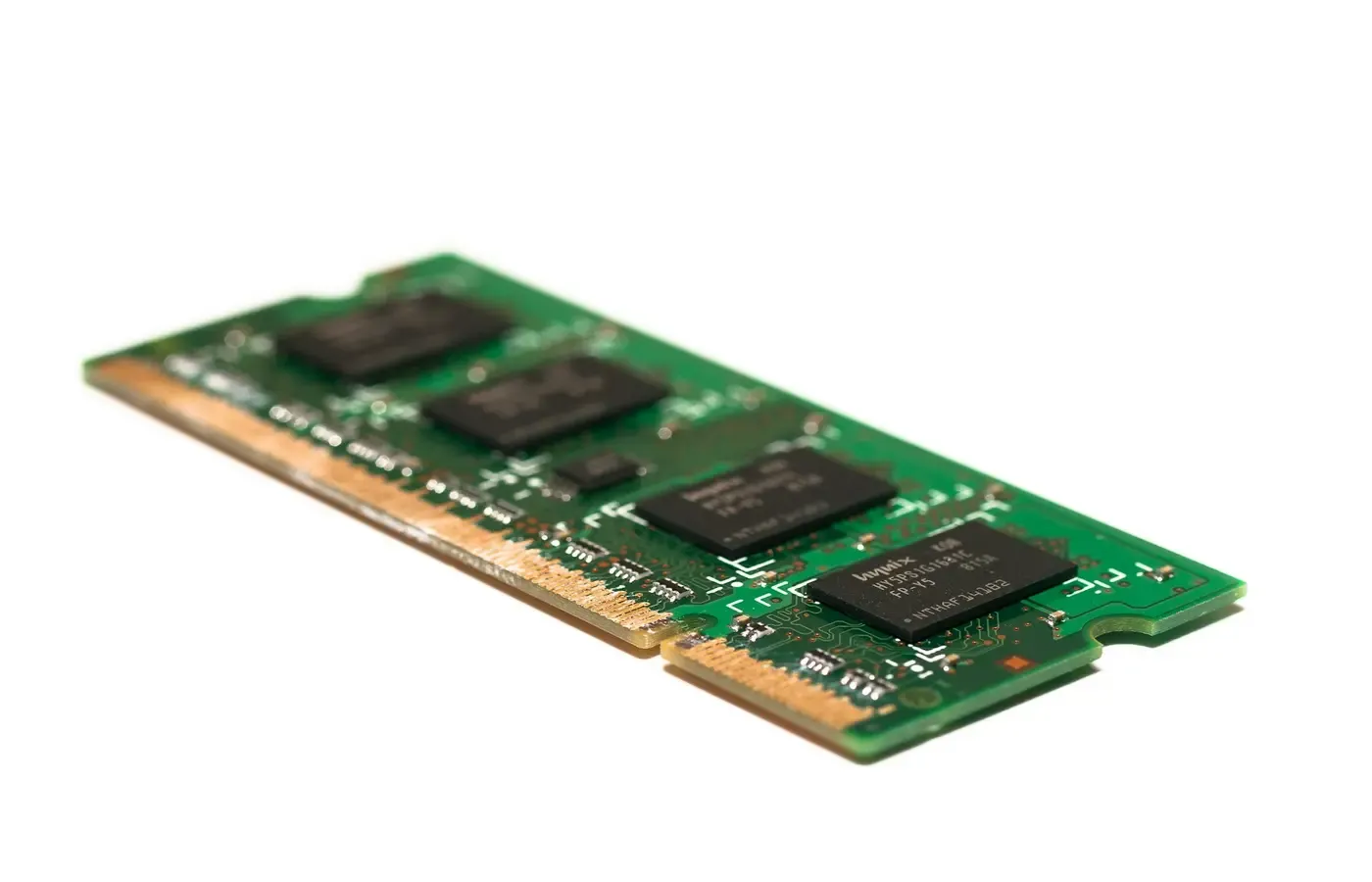
Traditional laptop memory modules are commonly called SO-DIMMs. Where a laptop has accessible SO-DIMM slots, memory may be replaceable or expandable, subject to the model’s supported capacity and slot arrangement. But HP’s upgrade guide notes that LPDDR memory is soldered and permanent. No amount of care in opening the chassis creates an upgrade path where there are no memory slots.
When memory is soldered, installed capacity is effectively a long-term purchasing choice. Do not buy the lowest-memory version on the expectation that a future upgrade will be inexpensive. Consider the applications you use now and the realistic headroom you may need over the ownership period.
That does not mean every laptop with soldered memory is a bad purchase. Soldered designs may suit someone with a fixed, modest workload, a limited budget or a short replacement cycle. They can also make sense where a particular machine’s weight, size, battery characteristics or other qualities matter more than expansion. The trade-off is simply clearer: you are choosing capacity upfront and giving up a later adjustment.
When documentation says memory is upgradeable, confirm four details:
- How many physical slots exist? Two slots are different from one, and a slot may already be occupied.
- What is installed? A laptop with one fitted module and one free slot offers a different path from one using both slots.
- What memory type is supported? Match the specified generation and form factor rather than assuming all laptop memory fits.
- What capacity does the manufacturer support? A physical slot alone does not establish a supported maximum.
If these answers are absent, choose the capacity you can live with now rather than treating an upgrade as promised.
Storage: distinguish replacement from expansion
Solid-state storage is often more flexible than memory, but the terminology still matters. Many laptops use replaceable M.2 SSDs, and some include a second slot for an additional drive, as HP’s overview explains. Those are not the same proposition.
Replacing the existing SSD can give you more capacity, but it involves moving your files or reinstalling the operating system. Adding a second drive may be less disruptive and can be useful for a large photo library, project files or local backups. Yet a second slot is useful only if it is actually present, physically accessible and compatible with the drive format the laptop supports.
Before relying on future storage expansion, verify:
- the number of storage slots;
- whether each slot is occupied in the configuration you are buying;
- the supported SSD format and dimensions;
- whether the manual describes access to the slot; and
- whether adding or replacing storage requires removing other components.
An accessible SSD is valuable, but it is not a guarantee of long service. Storage capacity is only one constraint on a laptop’s useful life. It also does not remove the need for backups: an upgrade or replacement is a moment when poor file housekeeping becomes painfully visible.
For some buyers, external storage is the better answer. A portable SSD can provide room for archives without opening the laptop, although it adds another item to carry and depends on having suitable ports. That can be a sensible compromise when internal expansion is limited but the current laptop otherwise meets your needs.
A battery replacement path matters more than a battery-life headline
Battery-life claims describe a measurement under particular test conditions, not an assurance of all-day use in your own work. HP’s laptop buying guidance notes that published battery figures depend on specific tests and real-world results may differ.
For ownership, the more durable question is what happens when battery capacity declines. Many modern laptop batteries are internal. Internal does not automatically mean disposable, but it does mean you should not assume replacement is easy or appropriate to do yourself. HP says internal batteries are often best replaced by a technician.
A credible battery-replacement path has several parts: an available suitable battery, documented disassembly steps, access that does not require unreasonable risk to surrounding components, and either your willingness to perform the work or a repair provider willing to do it.
iFixit’s repairability methodology offers a helpful standard: a repairable device should be straightforward to disassemble and allow replacement with manufacturer-supplied or endorsed parts and instructions. The theoretical existence of a battery inside the chassis is not enough.
Check the service manual before purchase. Does it identify the battery as a part? Does it show a replacement procedure? Is the work presented as a routine removal or part of a much larger disassembly? Documentation will not answer every question about future parts availability, but its absence is an important limit on what you can reasonably expect.
The overlooked parts can decide whether repair is realistic
Memory, storage and batteries dominate upgrade discussions because they are easy to describe in a specification table. In day-to-day ownership, a keyboard, fan, display, charging connection or wireless card may be just as consequential.
These are model-specific questions. HP’s upgrade guide says Wi-Fi card replacement is possible only in some laptops. The same caution applies to other components: an individual model’s manual and parts information matter more than broad assumptions about its category.
When reviewing support documentation, look for whether it identifies and illustrates removal of:
- the battery and cooling fan;
- keyboard and trackpad assemblies;
- display panel or display assembly;
- wireless card;
- speakers and charging-related components; and
- screws, cable routing and other disassembly steps.
You need not intend to carry out every repair yourself. The point is to understand whether a local technician has a documented path and identifiable parts if a common wear item becomes the reason the machine is sidelined.
When a sealed laptop can still be the right choice
Thin-and-light laptops tend to offer fewer upgradeable parts, while some gaming, business and workstation designs may offer more, according to HP’s general guidance. That is a design tendency, not a rule. It should prompt a check, not a verdict.
A less upgradeable laptop can be sensible when its capacity already suits a stable workload, portability is unusually important, the price difference would strain the budget, or an employer manages replacement and support. In these cases, buying sufficient memory and storage upfront may be more valuable than paying for expansion you will never use.
There are also alternatives to replacing a laptop prematurely:
- Keep the current laptop if its limits are storage, battery condition or clutter rather than fundamental performance.
- Use external storage when files are the pressure point and your ports and workflow make it practical.
- Replace the battery through a repair provider when documentation and suitable parts support that route.
- Buy used or refurbished when an older, more serviceable design better fits your workload and budget; inspect condition, battery health, support status and parts access rather than assuming older means repairable.
- Wait if you cannot establish the exact model’s memory and storage arrangement before a purchase. Uncertainty is a reason to pause, not a reason to accept the retailer’s broad description.
The better laptop is not automatically the one with the most removable components. It is the one whose fixed limits and realistic repair path fit the job, the budget and the years you expect from it.
Questions to settle before checkout
Can you upgrade RAM in a laptop after buying it?
Sometimes. It depends on whether the exact model uses removable SO-DIMM modules and has usable slots. If it uses soldered LPDDR memory, the installed capacity is permanent. Check the manufacturer’s specifications and service documentation rather than relying on the laptop family name.
How do you know whether a laptop has a second SSD slot?
Look for the exact model’s storage specifications and service manual. Confirm the number of slots, whether one is empty in the configuration being sold, the supported drive format and the access procedure. A listing that merely says “M.2 SSD” does not establish that there is a spare slot.
Can an internal laptop battery be replaced?
Often, but the practical answer varies by model. An internal battery may require substantial disassembly and may be better handled by a technician. Look for a documented replacement procedure and an identifiable replacement part before treating battery replacement as part of the ownership plan.
Is a laptop with soldered RAM a bad buy?
Not necessarily. It can be a sensible choice for a stable workload if you buy adequate memory from the start. It is a weaker fit if you expect your memory needs to grow, plan to keep the laptop through changing workloads or want the option to improve capacity later.
Sources & methodology
This guide uses manufacturer documentation for general descriptions of common laptop component arrangements, not as evidence that any particular brand or model is superior. HP’s upgrade and installation guide, repairability explainer and battery-life guidance inform the distinctions between removable and soldered memory, storage arrangements, internal batteries and advertised battery tests. iFixit’s laptop repairability methodology informs the discussion of disassembly, parts and instructions.
No model-specific service manuals, parts catalogues, pricing, warranty terms or independent teardown evidence were supplied for this article. For that reason, it does not classify individual laptops as repairable or upgradeable. Verify those details for the exact configuration and market before buying.