A lower-priced laptop with modest memory or storage can look like a sensible compromise: buy what you need today, then improve it later. Sometimes that is exactly the right calculation. Often, however, the upgrade path exists only on a product page in the buyer’s imagination.
Laptop upgradeability is not a brand characteristic, and it is not reliably predicted by price, screen size or a business-oriented label. It is a property of a specific model and, occasionally, of a specific configuration within that model. One version may have memory soldered to its motherboard; another may have an accessible slot. A laptop may accept a replacement SSD but have no spare storage bay. A battery may be sold as a service part while still requiring extensive disassembly to reach.
The useful question is therefore not, “Can this kind of laptop be upgraded?” It is: which parts can this exact model be changed for, how difficult is that work, and will those options still matter for the way you expect to use it?
The available research for this guide is general rather than model-specific. HP’s consumer guidance lists memory, storage, batteries and Wi-Fi cards among components that can sometimes be upgraded, while also making clear that capability varies by laptop. That is a useful starting point, not a substitute for the manual for the machine in your basket.
Upgradeability is a specification, not a promise
A laptop can be serviceable in one respect and closed in another. Storage is commonly the clearest example. Replacing an internal SSD may be possible even where the memory is fixed permanently to the board. That can make a machine more comfortable to live with when files, photographs or games outgrow the original drive, but it will not help if future work requires more memory.
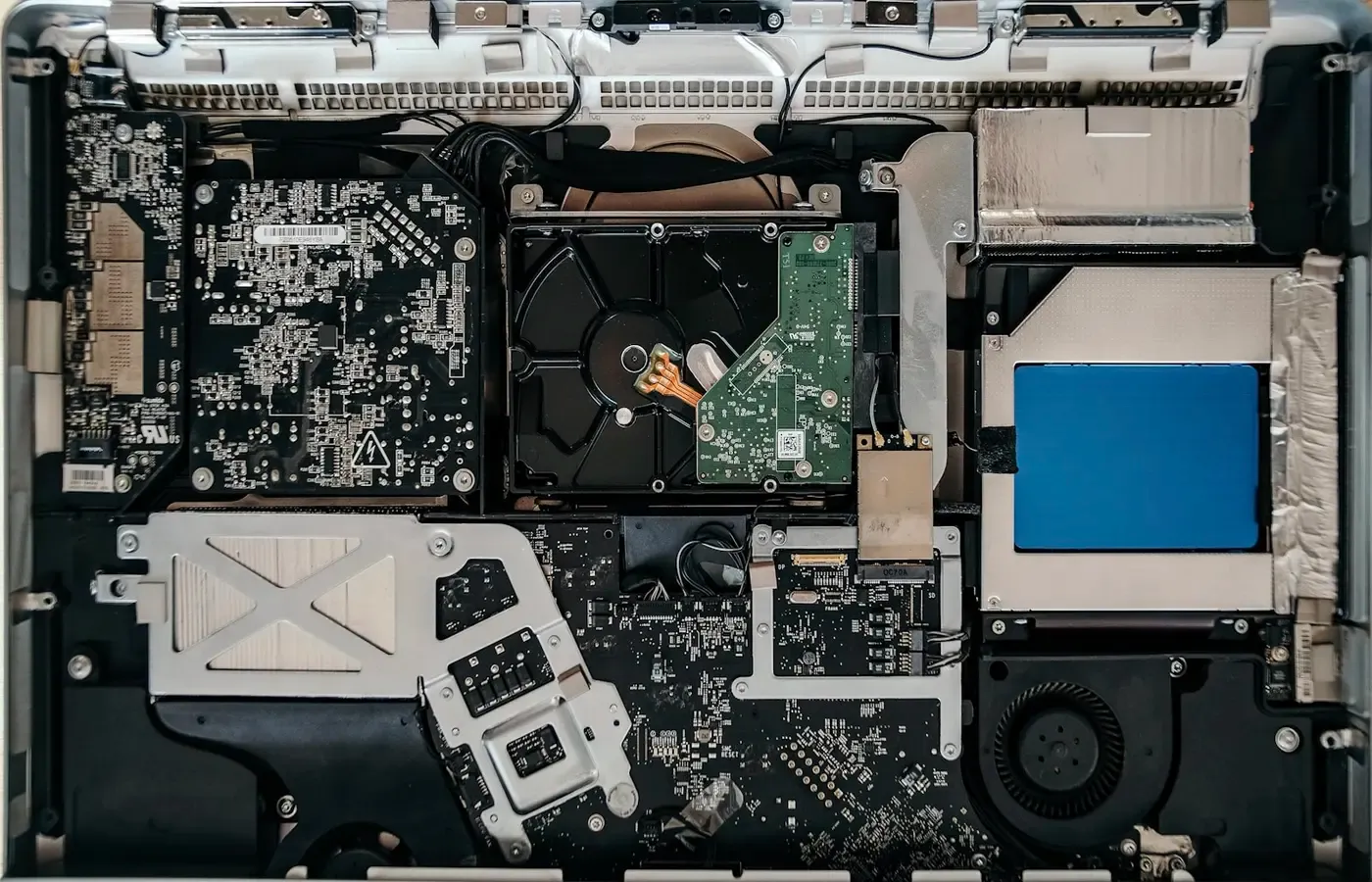
Similarly, a removable bottom cover does not prove that every component beneath it is user-replaceable. You may find an SSD, a battery attached with screws, shielding, cables, or components that are physically visible but unavailable as normal retail parts. The presence of a part is not the same thing as a practical repair path.
HP’s general laptop-upgrade guide identifies RAM, storage, batteries and wireless cards as components that may be changed in some laptops. The important word is “may.” Before treating a basic configuration as an upgradeable bargain, find documentation for the precise model number—not merely the product family name.
Look for these documents before purchase:
- a technical specification sheet that states memory type and installed capacity;
- a maintenance or service manual showing how the bottom cover and internal parts are accessed;
- a parts catalogue or service-parts list, where available;
- support pages covering storage replacement, operating-system recovery or drivers;
- warranty terms applicable in your country or region.
If these documents do not clearly describe the part you hope to change, assume nothing. A retailer listing that says “up to” a certain memory capacity may describe factory configurations rather than a user-accessible upgrade. A product listing that mentions an M.2 SSD may reveal the drive interface, but not whether there is a second slot.
Memory is the decision that is hardest to undo
For many buyers, memory is the part worth checking first. Storage pressure can often be relieved by deleting files, using external storage or replacing a drive. Fixed memory is more final: if it becomes insufficient for your work, there may be no realistic internal remedy.
There are three broad designs to identify.
Soldered memory: choose the capacity as part of the laptop
Soldered memory is attached directly to the motherboard. It is often described in specifications as onboard memory, integrated memory or LPDDR memory. It may help a manufacturer make a compact machine, but the practical consumer consequence is simple: capacity is set at purchase.
This is not automatically a bad choice. A laptop with fixed memory can be an excellent fit if its capacity is adequate for the work you expect to do during the time you expect to keep it. It can also be a poor value if you are choosing the smallest option on the assumption that memory can be added later.
Do not infer upgradeability from the memory generation alone. A listing that says DDR5, LPDDR5 or LPDDR5X does not answer whether modules can be removed. The manual or detailed technical specifications must say so.
SO-DIMM slots: potentially replaceable, still model-dependent
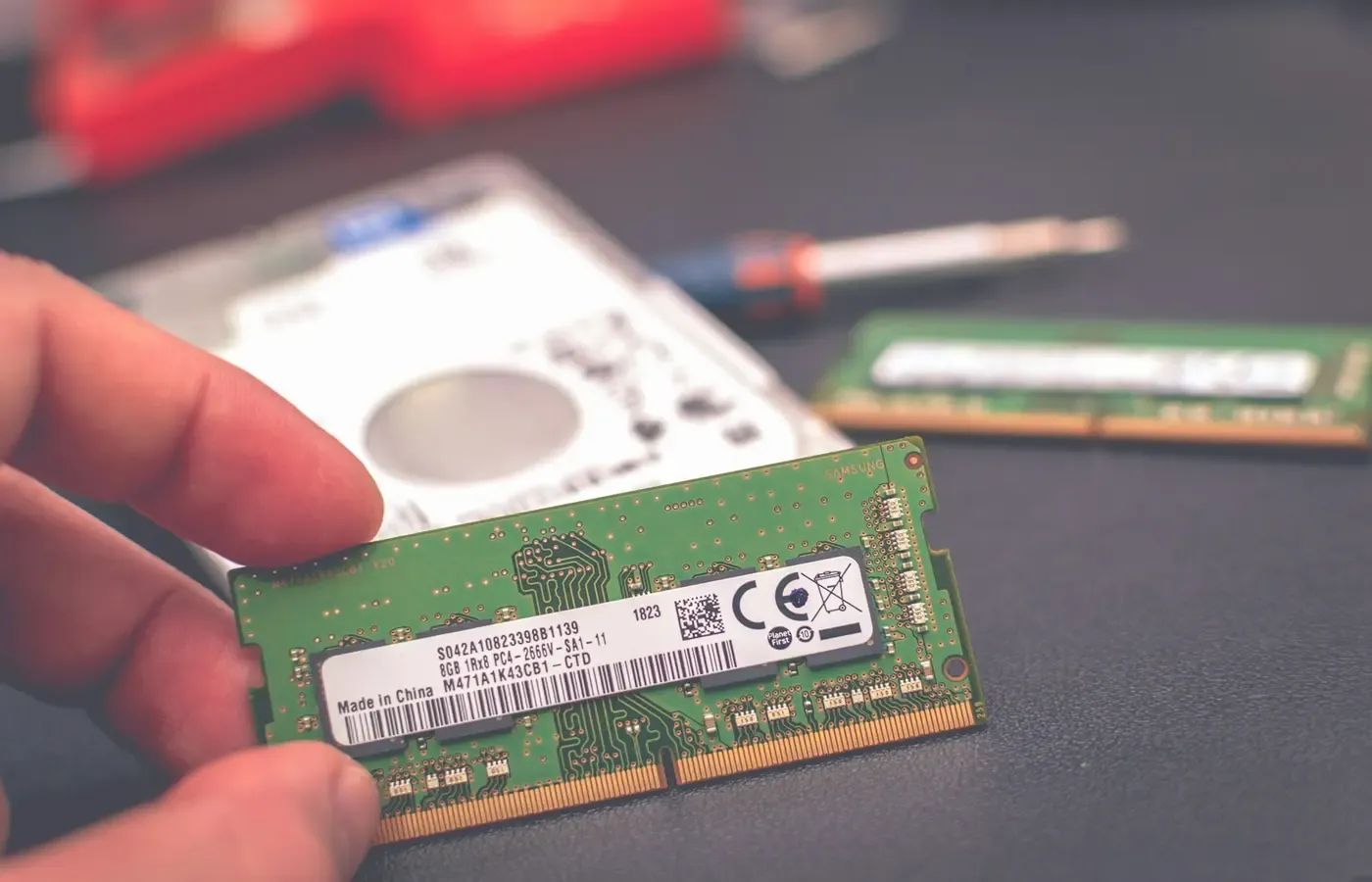
Traditional laptop memory modules are commonly called SO-DIMMs. If the machine has accessible SO-DIMM slots, memory may be replaceable or expandable. But “has slots” leaves several consumer-relevant questions unanswered:
- How many slots are there?
- Is one empty, or are both occupied?
- What capacity does the manufacturer say the laptop supports?
- Does the existing configuration use matched modules, and does changing one alter the intended memory arrangement?
- Is the compartment accessible from the bottom, or does access require removal of other components?
A second slot is valuable because it can allow expansion without discarding the original module. But it is still worth pricing the likely future upgrade before relying on it. If both slots are occupied by small modules, expanding later can mean replacing both—and finding a use for the originals.
Hybrid designs: partly fixed, partly flexible
Some laptops combine soldered memory with one removable slot. This can be a workable middle ground, but it should be understood as a constrained path rather than a blank cheque. The fixed portion will remain fixed; only the removable module can be changed.
A hybrid design may suit someone who needs modest flexibility but does not expect to transform the machine years later. It is less reassuring for a buyer whose work may become substantially more demanding or whose intended ownership period is long.
HP’s guide notes that additional RAM can help with multitasking. That is reasonable general context, but it does not mean more memory will solve every performance complaint. Slow storage, overheating, ageing batteries, software problems and processor limits can all produce a laptop that feels sluggish. Buy or upgrade memory for a clear workload need, not as a universal cure.
An M.2 slot is useful only if the whole storage path is clear
Storage is usually the easier internal upgrade to imagine, yet it has its own traps. An internal solid-state drive may use an M.2 form factor, but that label alone does not tell you whether a spare slot exists, whether the drive is easy to reach, or which replacement drives are supported.
There are two materially different situations:
- A spare internal slot. You may be able to add a second drive while retaining the original system drive.
- One occupied slot. More capacity requires removing the existing drive and replacing it with another.
The first is convenient; the second can still be perfectly sensible, but it is a migration project. You may need to copy your files, clone the old drive, reinstall the operating system, restore from backup, or create recovery media before beginning. If the original drive fails unexpectedly, a current backup matters far more than a theoretical upgrade plan.
When inspecting a model’s documentation, establish all of the following:
| Question | Why it matters |
|---|---|
| How many internal storage slots are specified? | One slot usually means replacement rather than expansion. |
| Is the installed drive removable? | Some storage arrangements may not be designed for ordinary replacement. |
| Which drive format and interface are documented? | Physical fit and electrical compatibility are separate questions. |
| Is there a stated access procedure? | This reveals whether reaching the drive involves routine cover removal or deeper disassembly. |
| What is the recovery route after replacement? | A new drive is not useful until the laptop can be restored and secured. |
Storage capacity and memory capacity should be treated as separate purchasing decisions. A machine with replaceable storage but fixed memory is not broadly upgradeable; it has one useful maintenance option. Conversely, expandable memory does not remove the need to consider how much internal storage you require from day one.
External SSDs can be a less intrusive alternative when the problem is archive space rather than day-to-day working space. They avoid opening the laptop and can move to a later machine, though they add another object to carry and another device to back up.
Battery replacement is about useful life, not speed
A replaceable battery does not make a laptop faster, but it can matter greatly to ownership. Battery wear can change a portable computer’s usefulness long before its processor, display or keyboard cease to meet your needs. A documented replacement route and available part can make keeping an otherwise satisfactory laptop more realistic.
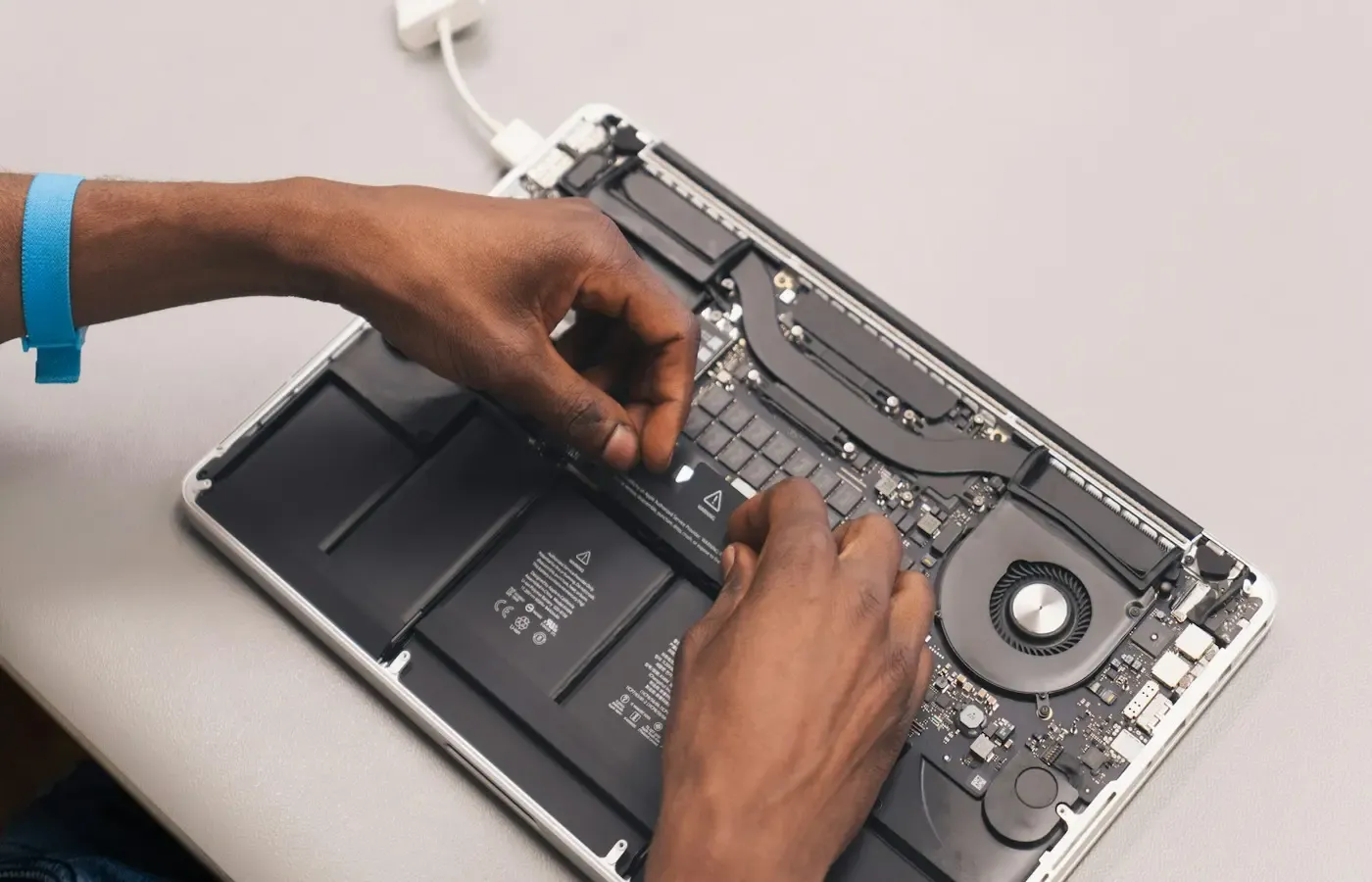
Here too, “replaceable” needs unpacking. A battery may be internally mounted, secured by screws, connected by a cable and reachable only after removing the lower case. That may be a reasonable repair for an experienced owner or a repair shop, yet not one every buyer wants to attempt.
The same caution applies to wireless cards, keyboards, displays, charging ports and fans. HP lists batteries and Wi-Fi cards among parts that can sometimes be upgraded or replaced, but the design, parts availability and required disassembly vary by model. A listed component is not proof that a user can replace it safely, cheaply or without risking cosmetic damage.
For these parts, ask a slightly different set of questions:
- Is the part listed in the manufacturer’s service documentation?
- Can it be purchased through normal official or reputable repair channels?
- Is there a published removal procedure?
- Are screws, adhesives, cables or paired components involved?
- Would you prefer a repair shop to do this work?
A laptop with fixed memory and replaceable battery may still be the better long-term choice than one with expandable memory but poor access to commonly worn parts. Upgradeability is not a score; it is a set of ownership options with different value to different people.
Warranty is not a yes-or-no label
Do not rely on broad internet claims that opening a laptop automatically voids its warranty—or that it never can affect warranty support. Warranty terms differ by manufacturer, market and circumstance, while local consumer-law protections also vary.
Before opening a new machine, read the terms supplied for your market and the manufacturer’s service instructions for the exact model. The relevant issue may not be the act of adding storage itself, but damage caused during the work, the use of an incompatible part, missing screws, or a problem that makes later diagnosis difficult.
If the documentation is unclear, keep a record of the original configuration, use suitable tools, retain removed parts and consider authorised service. That is not a warning against self-service; it is recognition that an upgrade should not create an avoidable dispute over an unrelated fault.
What to verify before paying less now
A lower-specification configuration is only genuinely cheaper if it still meets your likely needs or has a credible, documented upgrade path. Use this checklist before choosing it.
Memory
- Is all memory soldered, all slotted, or a mixture?
- What capacity is installed now?
- How many memory slots are present, and how many are free?
- Does the official documentation state a supported maximum?
- If memory is fixed, would the selected capacity remain comfortable if your work changes?
Storage
- Is the current SSD removable?
- Is there a spare internal slot?
- What drive format and interface does the manual specify?
- Can you restore the operating system after a drive replacement?
- Would external storage meet the actual need instead?
Repair access
- Is there a service manual for this exact model?
- Are battery and storage replacement procedures shown?
- Are replacement parts documented or sold?
- Does opening the case require adhesives, specialist tools or substantial disassembly?
Ownership horizon
- Are you buying for a short, defined use or several years of changing work?
- Is the laptop meant mainly for browsing and documents, or for workloads likely to grow?
- Would paying more for fixed memory now remove a future constraint?
- If repair access matters deeply, should you choose another model rather than compromise on capacity?
The best answer is often to buy enough non-upgradeable memory at the outset and treat any later storage expansion as a bonus. That can feel less economical than selecting the entry configuration, but it may be cheaper than replacing a laptop early because the one component you need cannot be changed.
Choose around your exit options
The case for an upgradeable laptop is strongest when you value a long ownership period, expect variable workloads, or want the option to repair a worn battery or failed drive rather than retire the whole machine. In those circumstances, manuals, part numbers and access procedures deserve as much attention as processor names.
The case for a fixed design is strongest when a particular size, weight, battery-life profile or feature set suits your actual work and the chosen specification is sufficient from the start. There is no prize for buying maximum serviceability if the machine is otherwise wrong for the job.
And an upgrade is not always the decision. If your present laptop’s limitation is storage, a documented SSD replacement or an external drive may be enough. If it is reduced battery endurance, a replacement battery—where supported—may be the more proportionate intervention. If the issue is software clutter or a failing peripheral, neither extra RAM nor a new computer necessarily addresses it.
The bounded judgment is simple: do not pay for a future upgrade path that you have not verified. Buy fixed capacity deliberately, buy serviceability deliberately, and treat a missing manual or unclear parts path as information rather than an invitation to guess.
Sources & methodology
This guide uses the supplied research package and does not assess any individual current laptop model. The central source is HP’s How to Upgrade Your Laptop: A Comprehensive Guide, used only for its general description of components that may be upgradeable in some laptops.
Model-specific claims about slot counts, memory limits, SSD formats, parts availability, repair difficulty and warranty conditions require the exact manufacturer documentation for the laptop and market concerned. No such model-level documentation was supplied here, so this article does not make claims about particular brands, series or configurations.